————————————DIALOG PROGRAMMING——————
PAI — process after input once u hit enter this process will take place
PBO — before it displays the screen, maybe once or n number of times
POH — process on help request ( F1 )
POV — process on value request ( F4 )
SAP module pool programs start with SAPM
for custom program SAPMZ or SAPMY
difference between module pool and executable report
1) Mod. pool is going to have screen interlinked via flow logic2) we need a tocode to run Mod. pool programs
sy-ucomm is represented as OK_CODE in SAP
Create a screen
then create a transaction
design the screen
create GUI title
create GUI status
We will create a sample module pool to demonstrate the same.
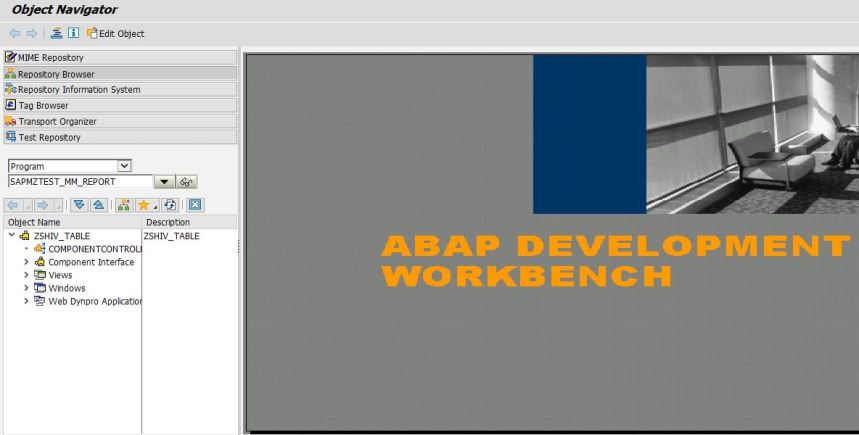
- Create a new report SAPMZTEST_MM_REPORT in SE80
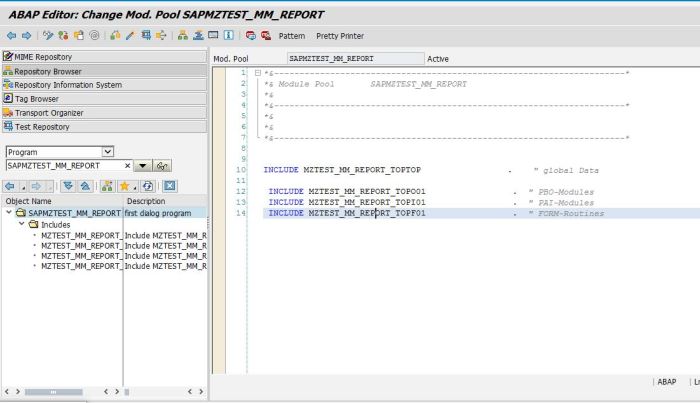
2) un-comment all the includes and activate them one by one by saving them into a local package
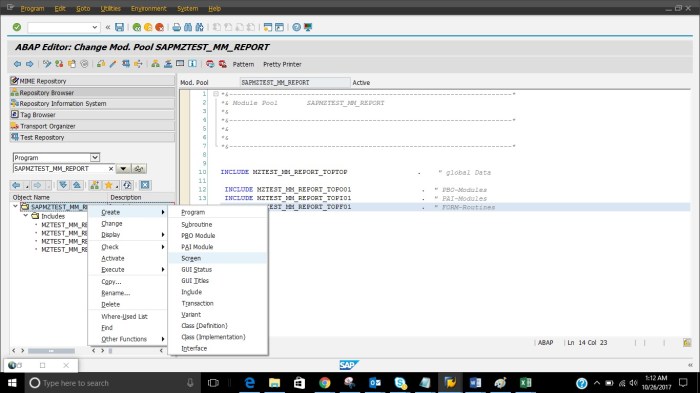
3. Create Screens
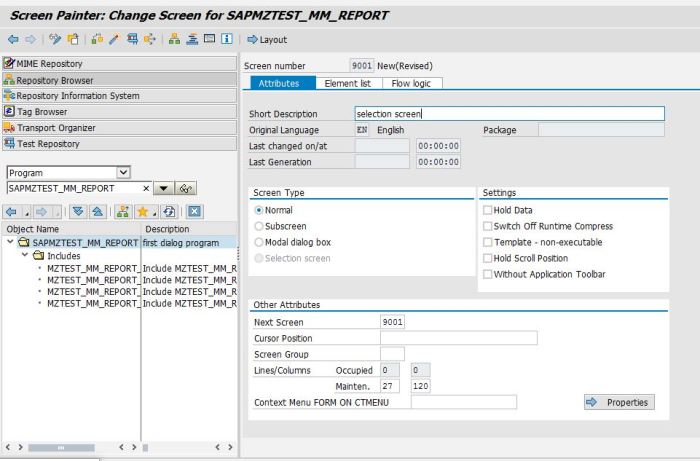
4. you will be navigated to the below screen , choose the options as given in the screen below and save and activate
5. you will get the screen below ( PBO and PAI )
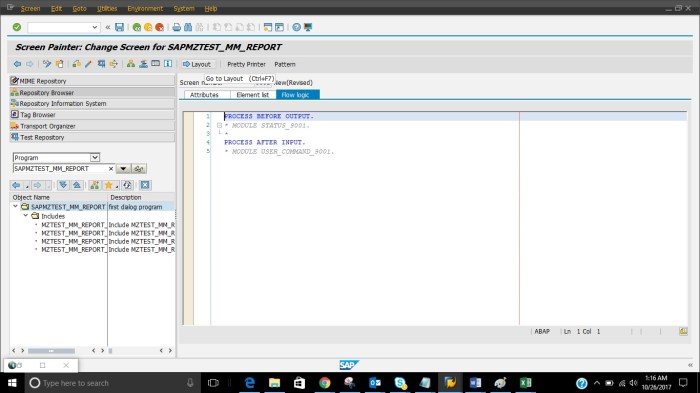
6. Create a new input filed and drag it to the screen and double click and fill the below properties
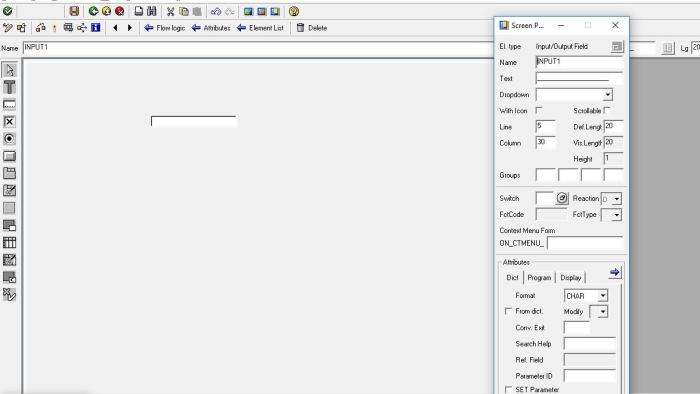
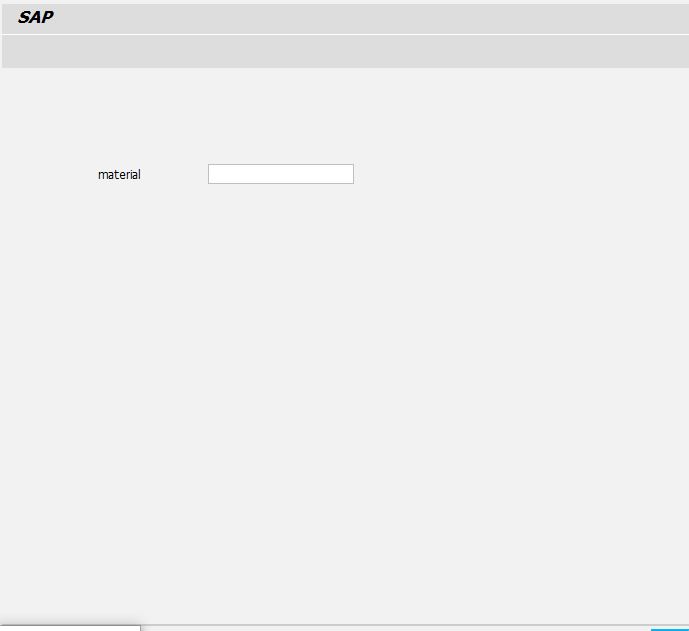
7. Create a text filed called material

8. Since module pool can be executed only via transactions , create a transaction as shown below
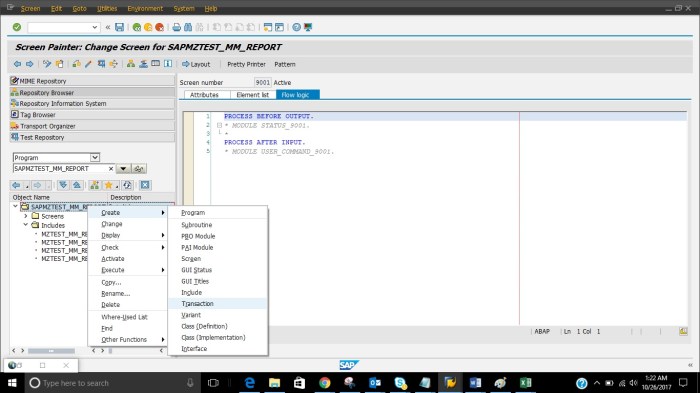
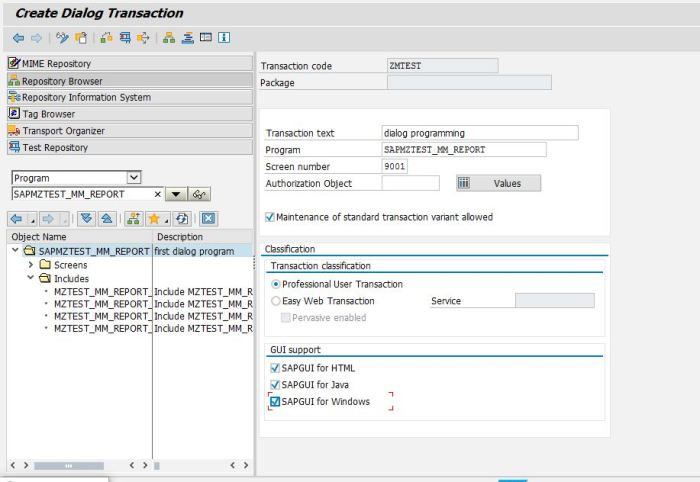
9.Give the properties below

10. Select the options given below
11. execute and check this is how your screen looks, you need to add logic to perform the actions
12. Navigate to the screen and double click on it , be sure that you are in change mode and then click on layout
13. you will get the below screen
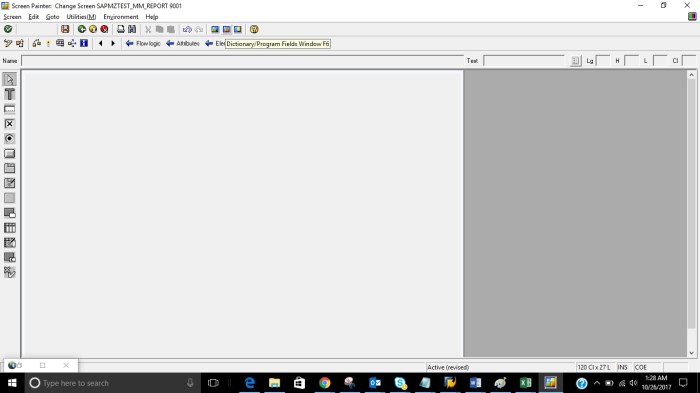
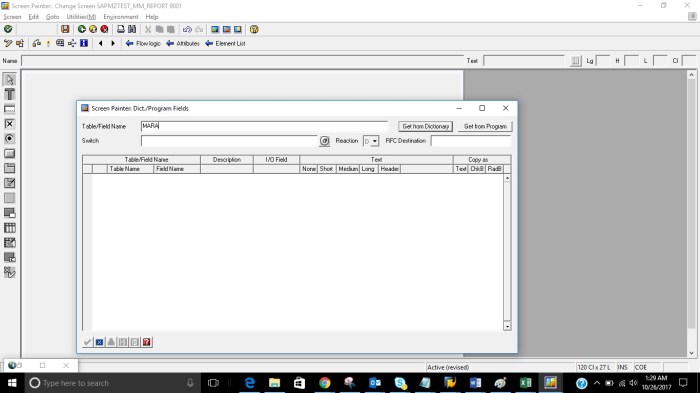
14. you can also get the fields by clicking on get from dictionary option also you can get the fields from your program by clicking on get from program option
15. Select the fields you want to display
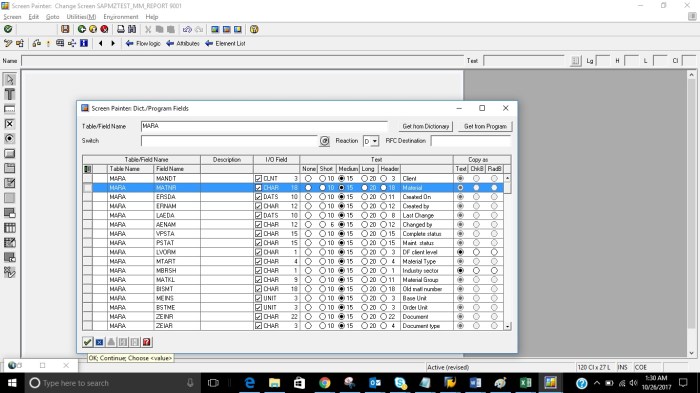
16. After selecting the field click drag it on the screen where you want to place the field
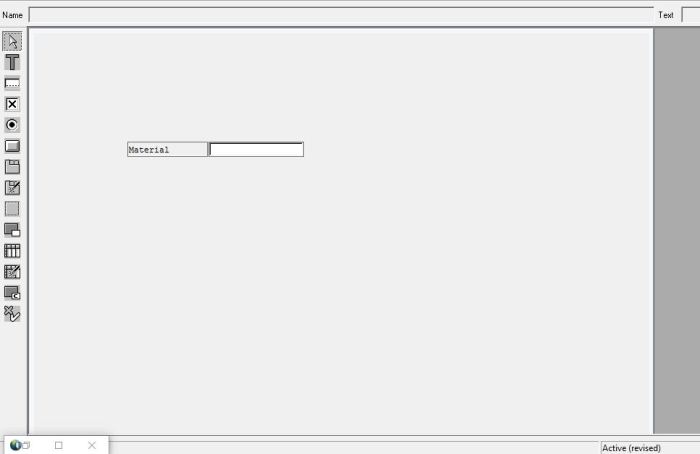
17. you can select different properties like make it mandatory etc..
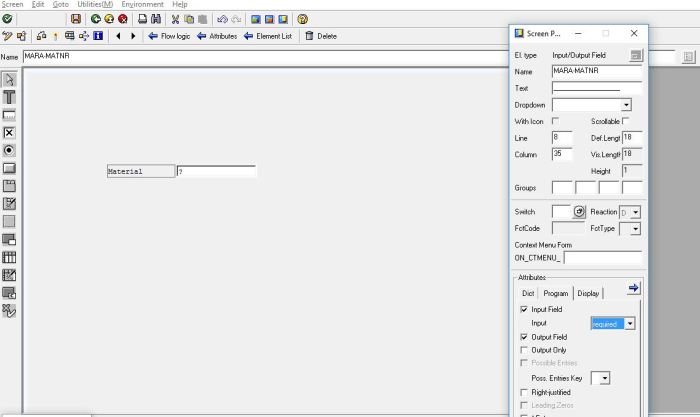
18. Create a new GUI title
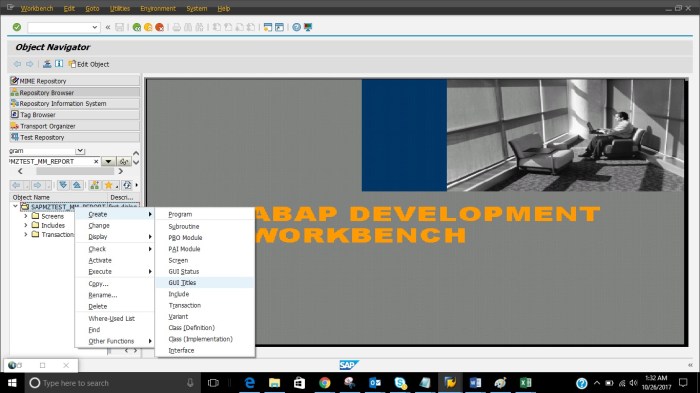
19. give the below details
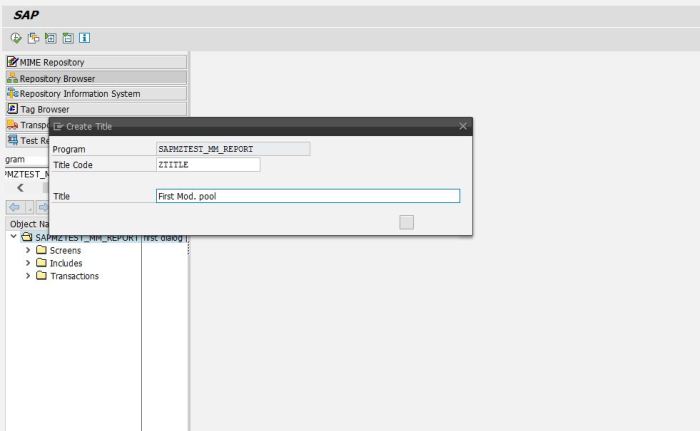
20. Create a new status
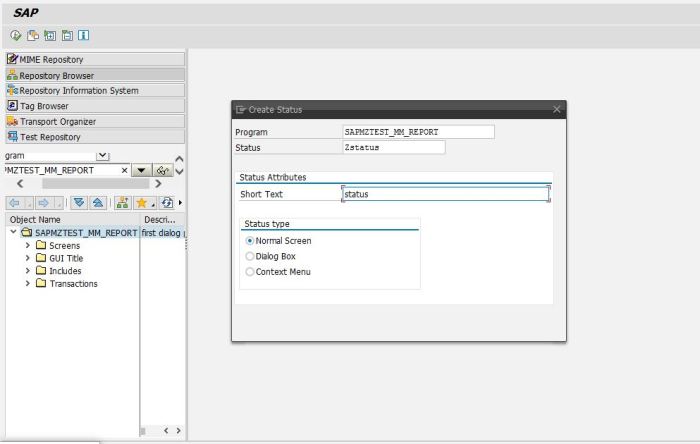
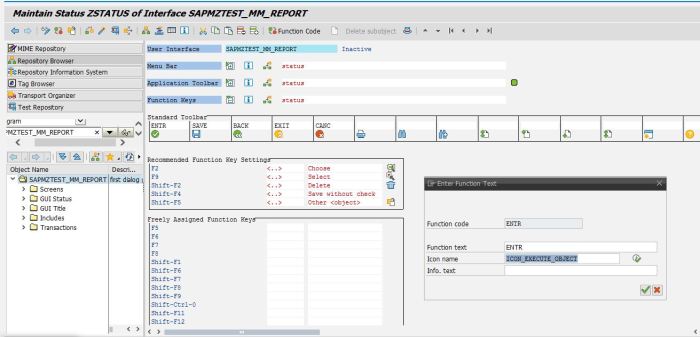
21. Fill in the function codes as shown in the screen below

22. for Enter see the screen below and then save and activate
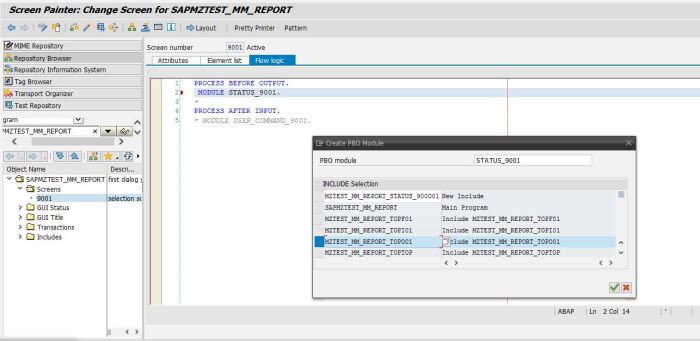
23. Double click on the PBO and save it on the include highlighted below
24. Add the below logic to the screen as shown below
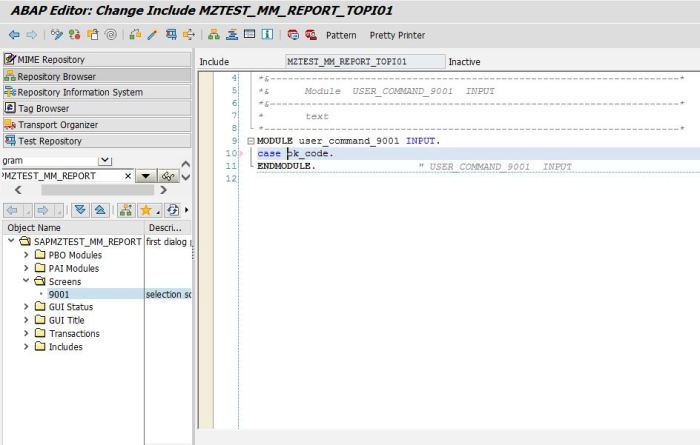
25. Define the same in the top include as well
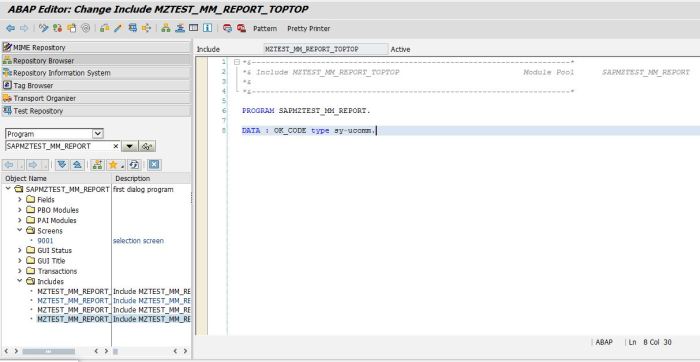
26. Add the below logic to the screen

It will give you an idea how module pool will get created
 Binarybuggs